Creative Solutions
Repair Center
Quick Start
Logging in and Using Roles
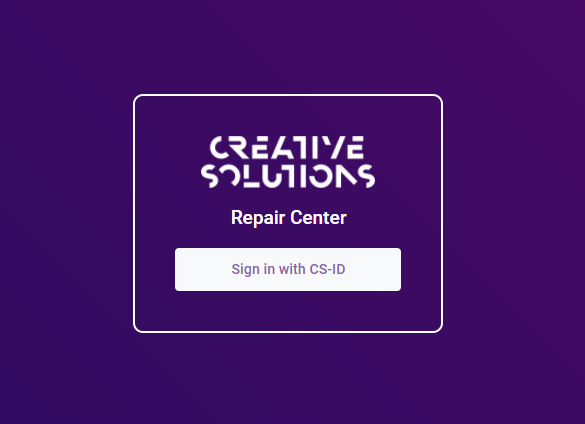
- Go to https://repairs.cs.inc
- Click on Sign in with CS-ID
- Use the CS-ID username and password to log in.
Switching roles
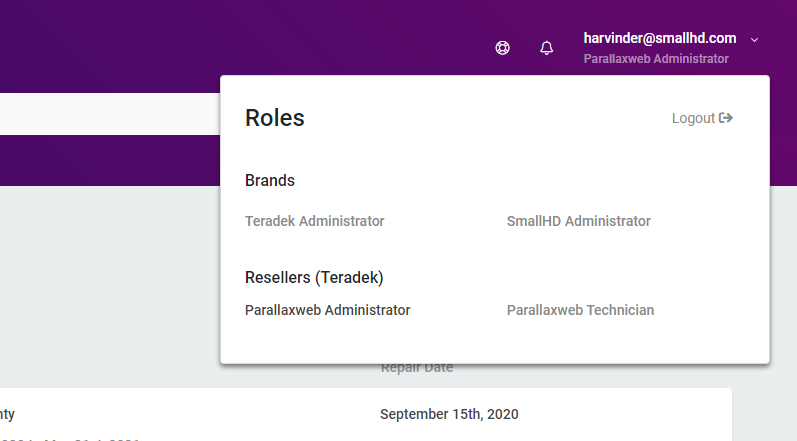
Roles in CRC are designed to let you switch to different profiles or different organizations on the fly without logging out or having to maintain multiple usernames.
- To switch roles, click on the username on the top-right corner of the CRC app.
- Select the role you would like to switch to.
Homepage Overview
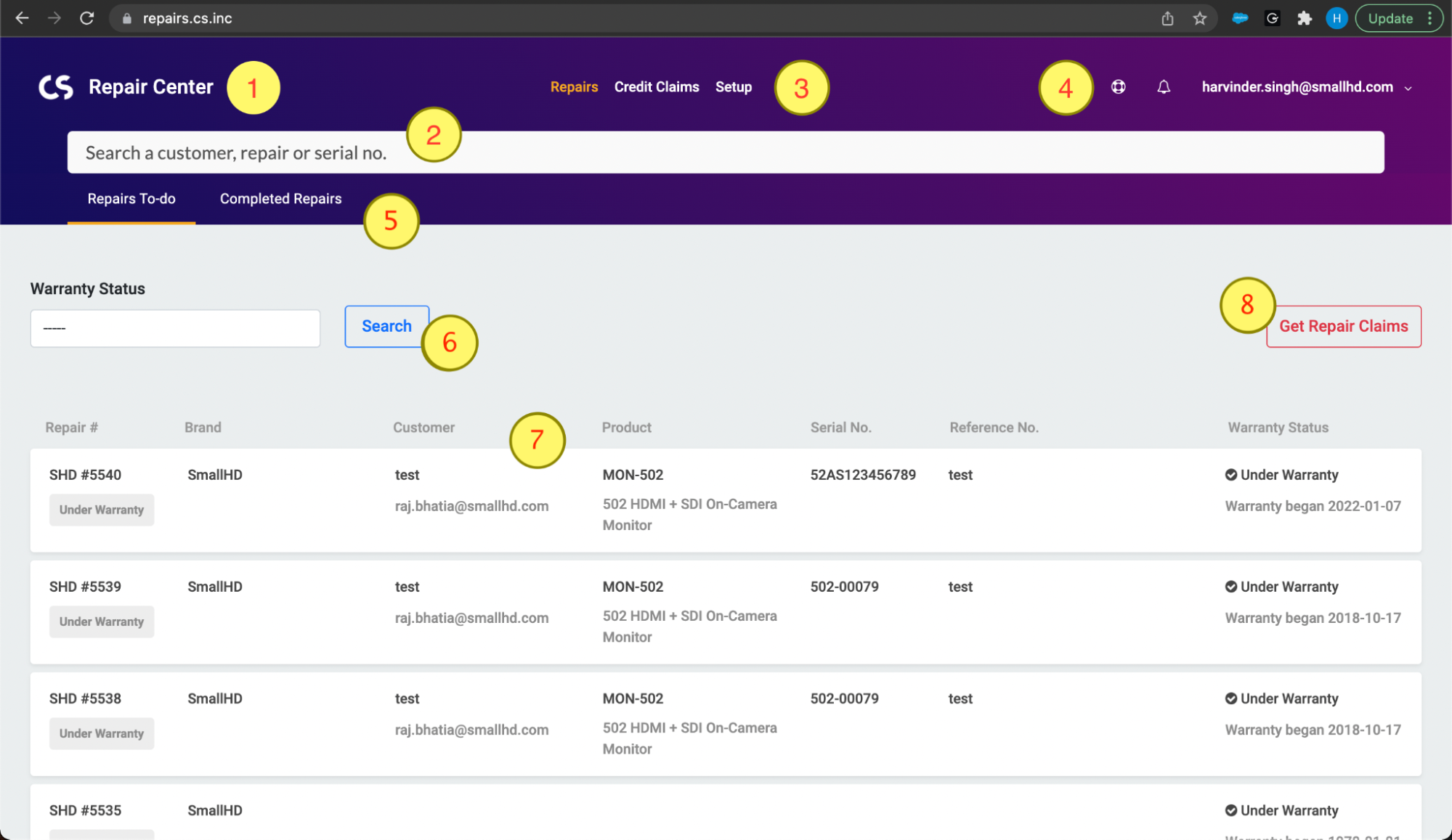
- Is the homepage link. Click here from any page to go to the CRC homepage.
- Is Global Search. Use this to search for serials, repairs or customers.
- Is the main navigation.
- Repairs take you to the list of repairs.
- Credit Claims shows you the list of claims with their status.
- Setup shows you your users and products repairable by brand.
- Is the sub navigation.
- Help icon lets you email CRC support.
- Notifications are an upcoming features.
- Username of the user logged in. Click this to open switchable roles.
- Are the tabs to filter on repairs list.
- Are list filters.
- Is the list of repairs. Click on any of the repairs to open details and perform actions on the repairs.
- Lets you download all historical claims (open and processed).
How to Search Warranty
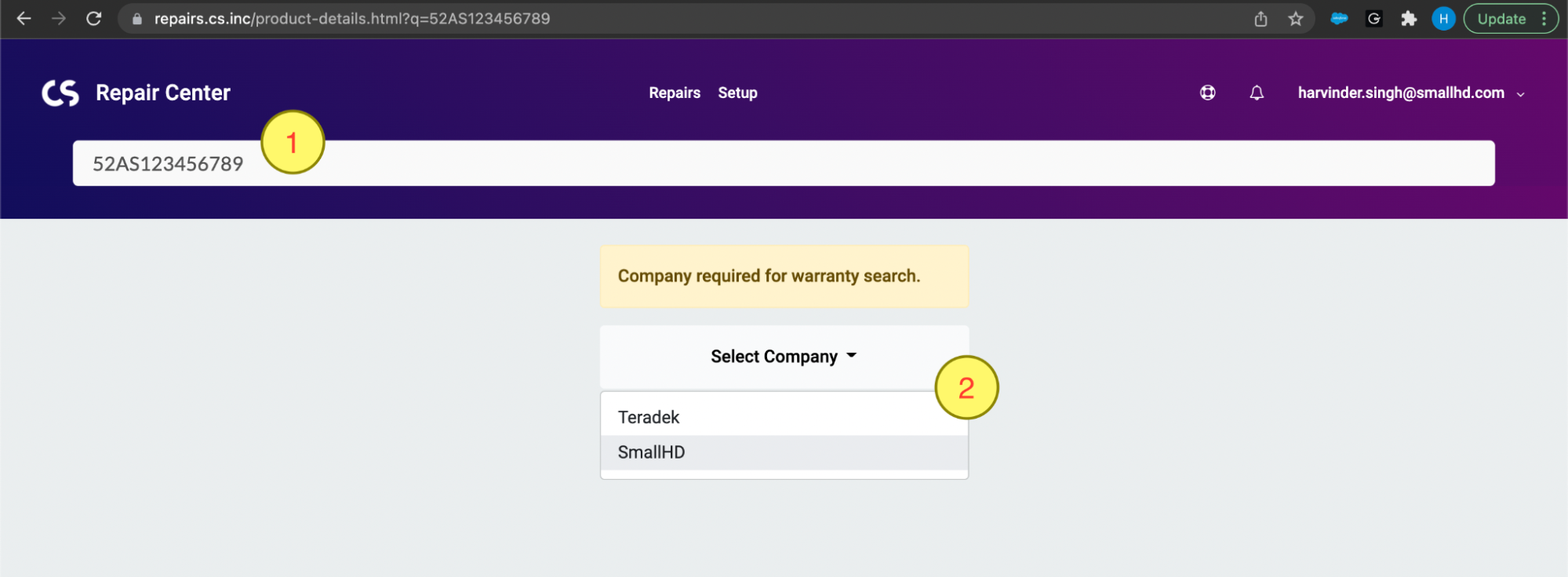
- Start with entering the product serial number into the search bar.
- Select the brand. SmallHD in this example.
- A screen will appear displaying the warranty details.
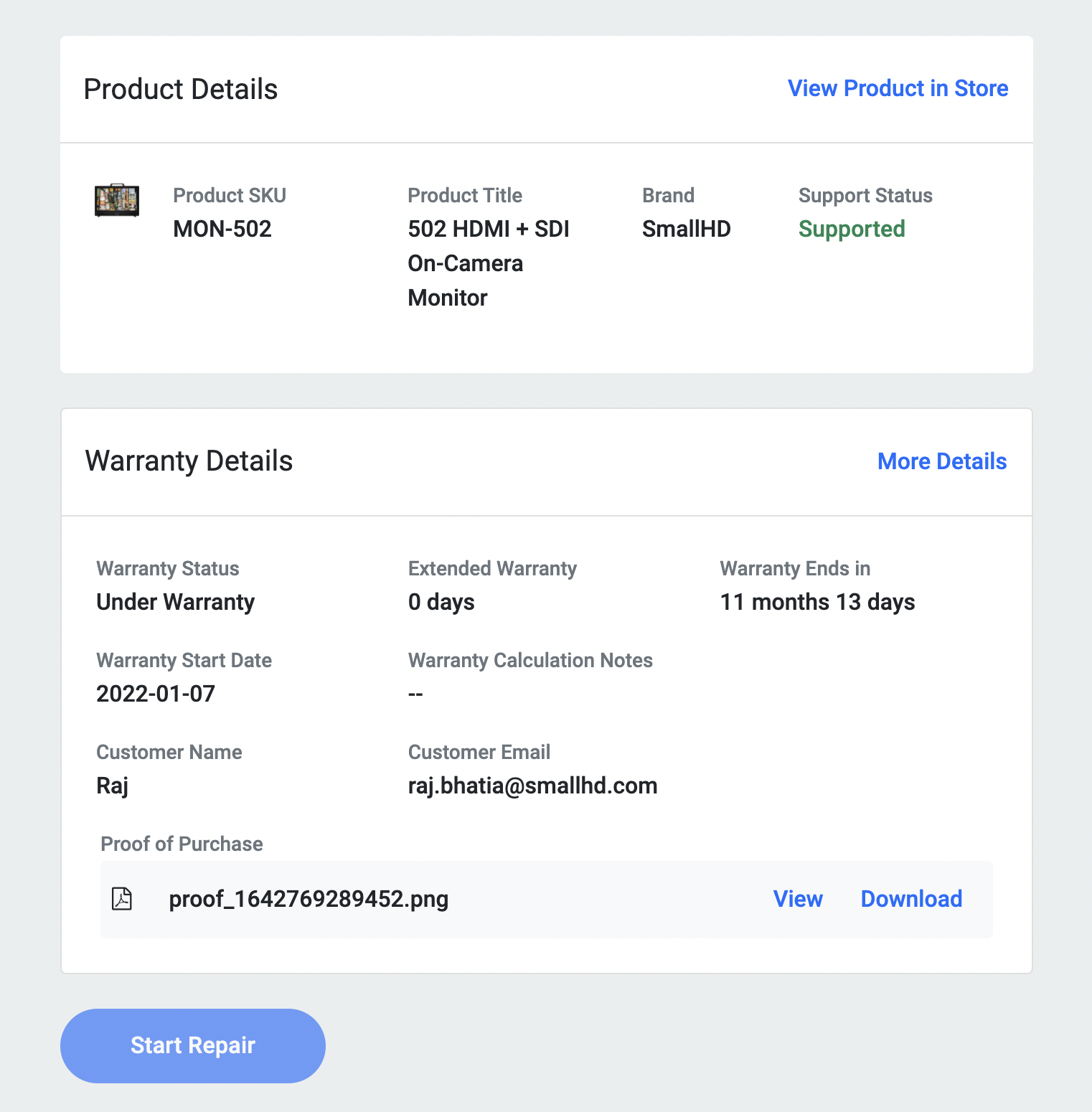
How to Start a Repair
To start a repair, start by searching the serial number in the global search bar. [See previous article]. Look for Start Repair under the warranty details.
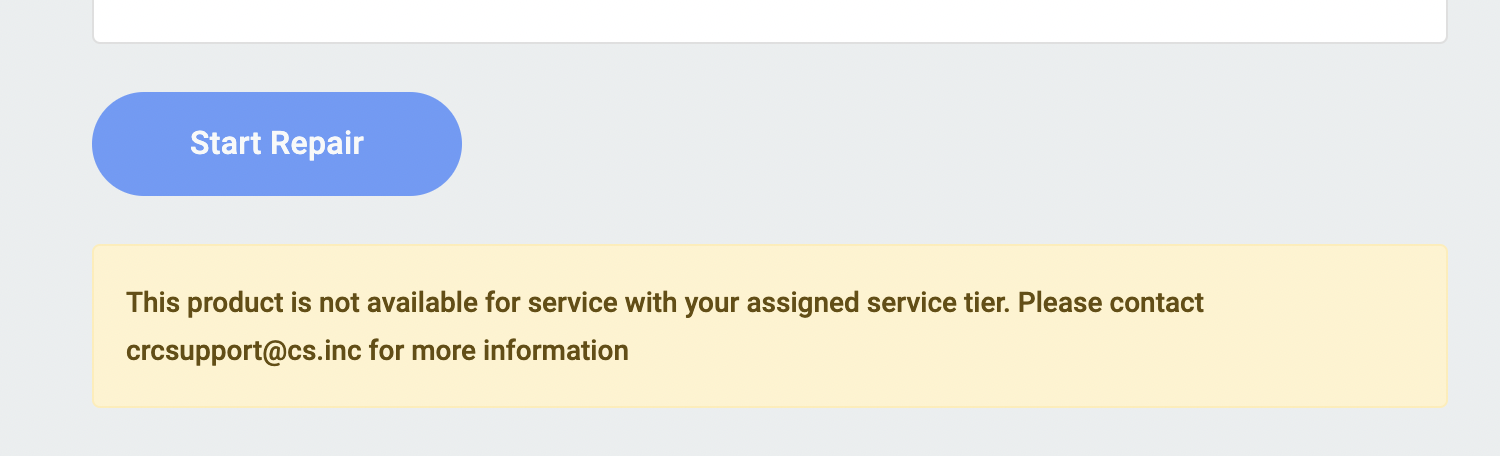
Note: In certain cases, CRC app may not allow you to proceed with the repair because of service tier limitations. Contact crcsupport@smallhd.com to know more about service tiers.
Click on the button to start a repair if it is clickable. You will see the following screen:
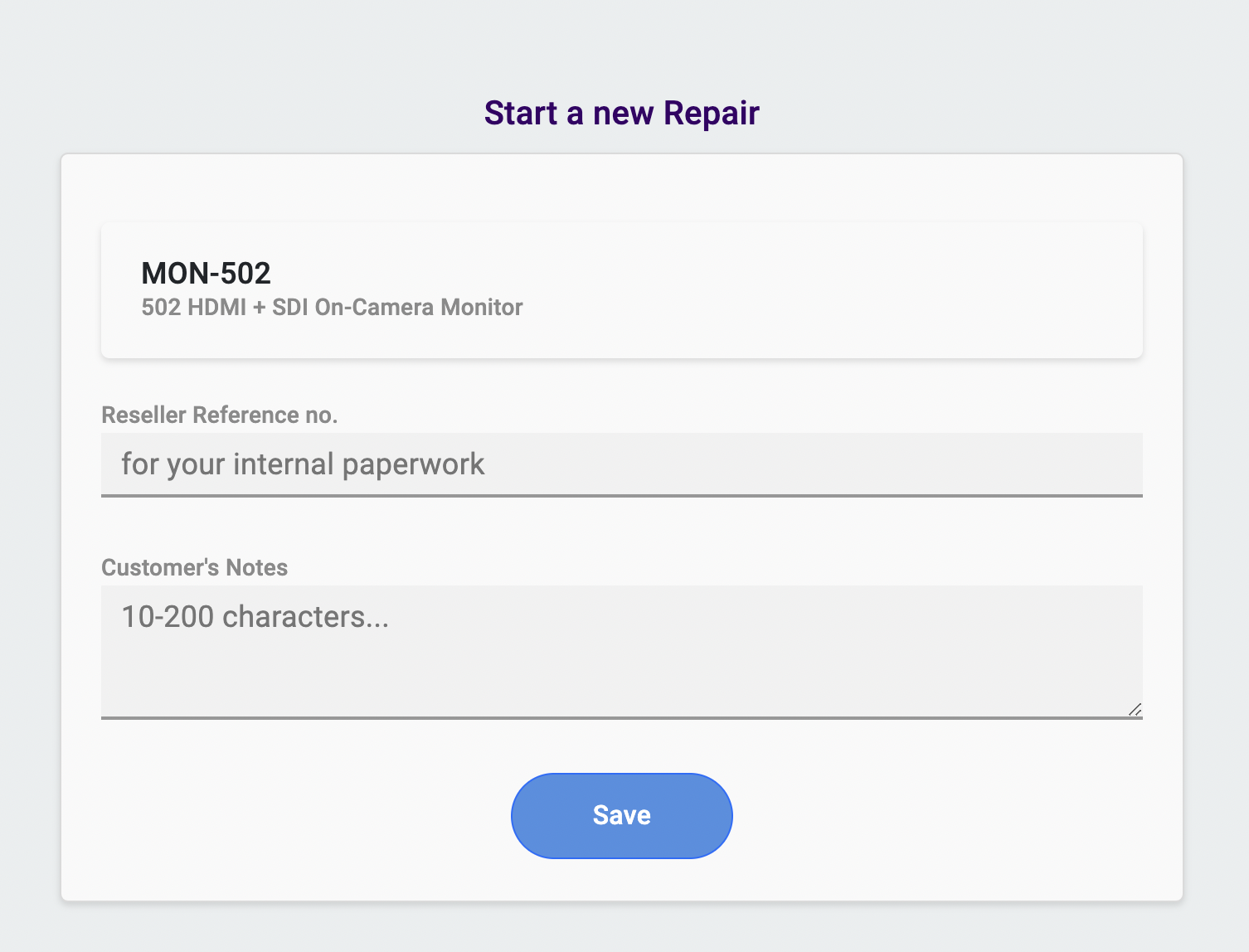
- Fill in your reference number. The reseller number helps you put your internal RMA# in the CRC system so that it appears on the receipts produced by the CRC system later.
- Customer’s notes hold the customer's description of the problem with the product. Please keep it brief but informational at the same time.
- Click save to start a new repair.
How to Perform a Repair
Here is how a typical repair screen looks like.
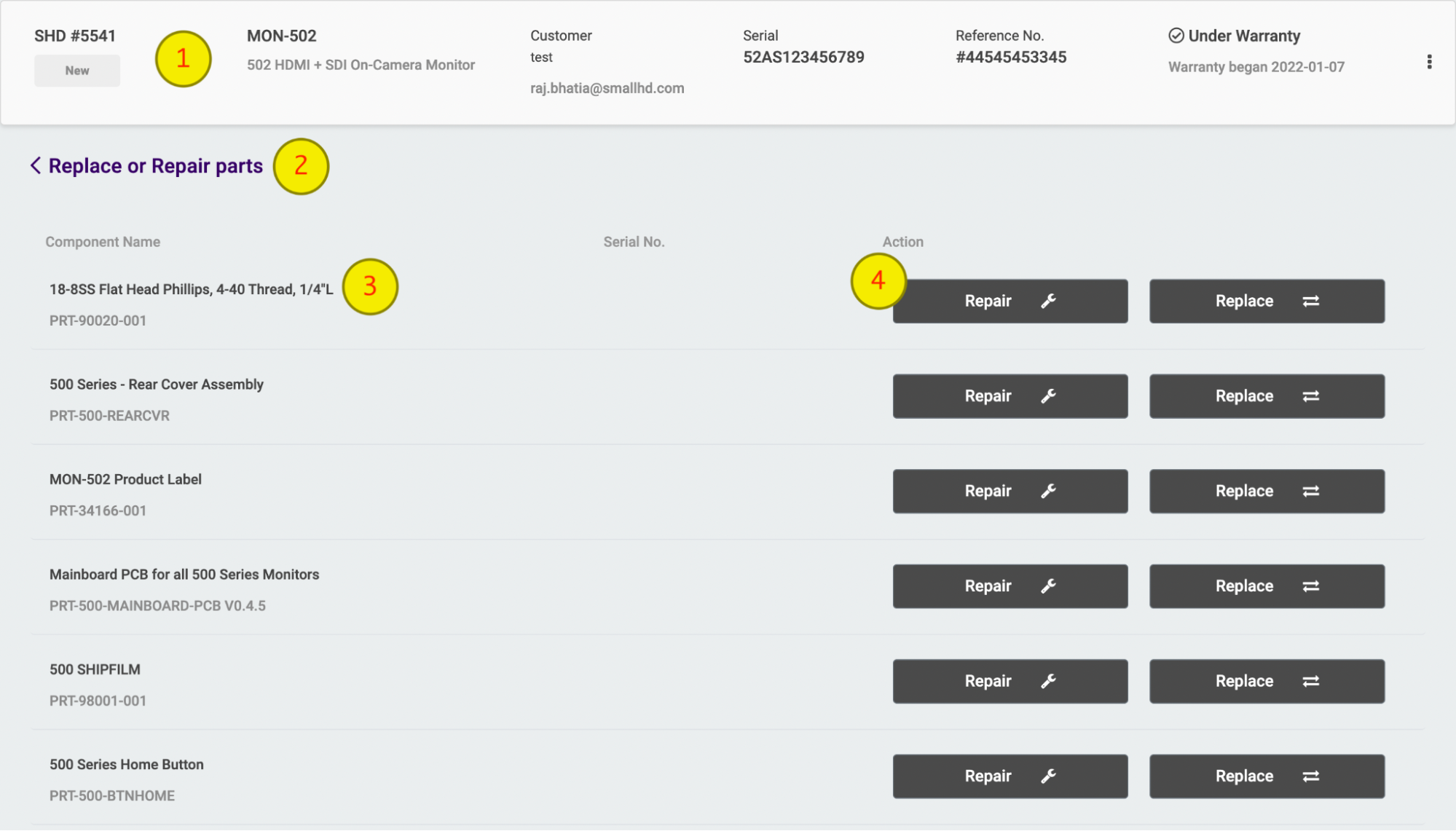
- Is the product overview
- Let’s to go back and deal with the repair later.
- Is the list of components that your can perform service actions on.
- Available service actions
- Repair
- Replace
Clicking either one next to a component opens the repair action pop-up. Follow the next section to understand how to register a repair action.
How to register a service action
The repair action pop-up will typically look like this:
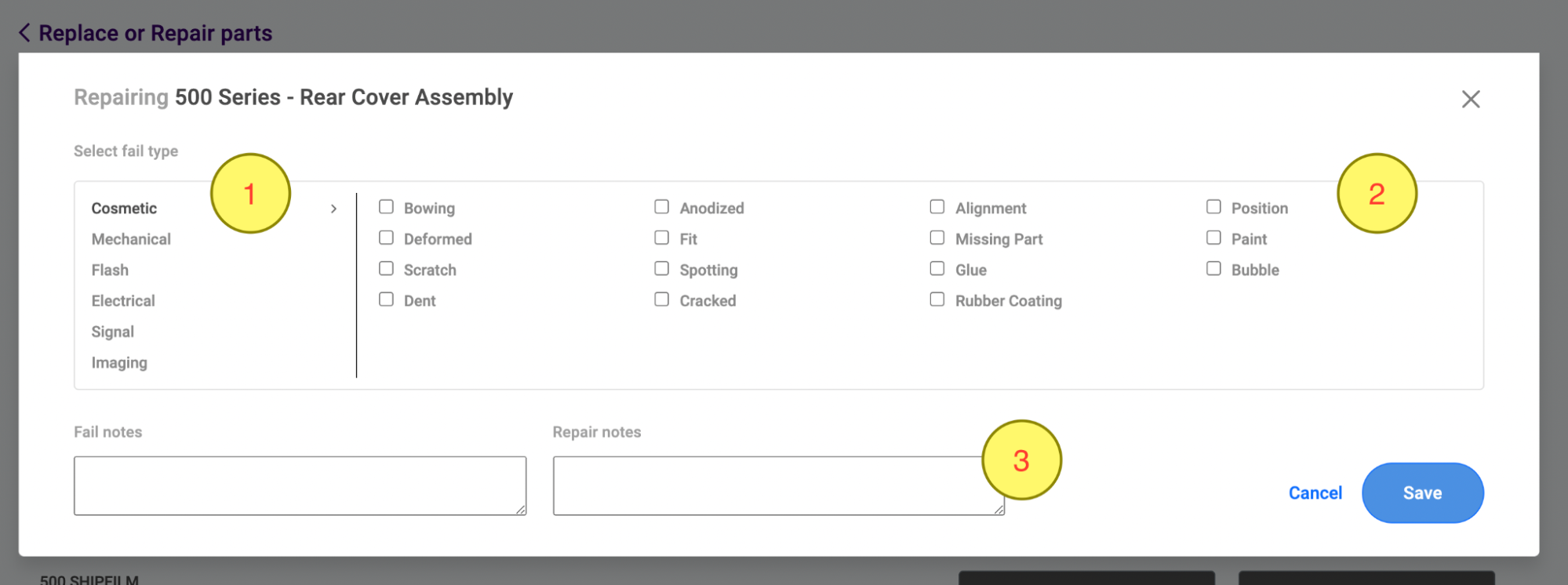
- Select the repair category depending on the product and failure.
- Select the failcode that describes the nature of the repair appropriately.
- Add fail notes and repair notes.
- Note: The notes carry the information on what steps were taken to fix the failure on the selected component. These notes help us approval warranty credits promptly.
- Click save to register service action.
Completing Repairs
Once the repair of the product is complete and all required service actions have been saved. Click on Finish Repair.
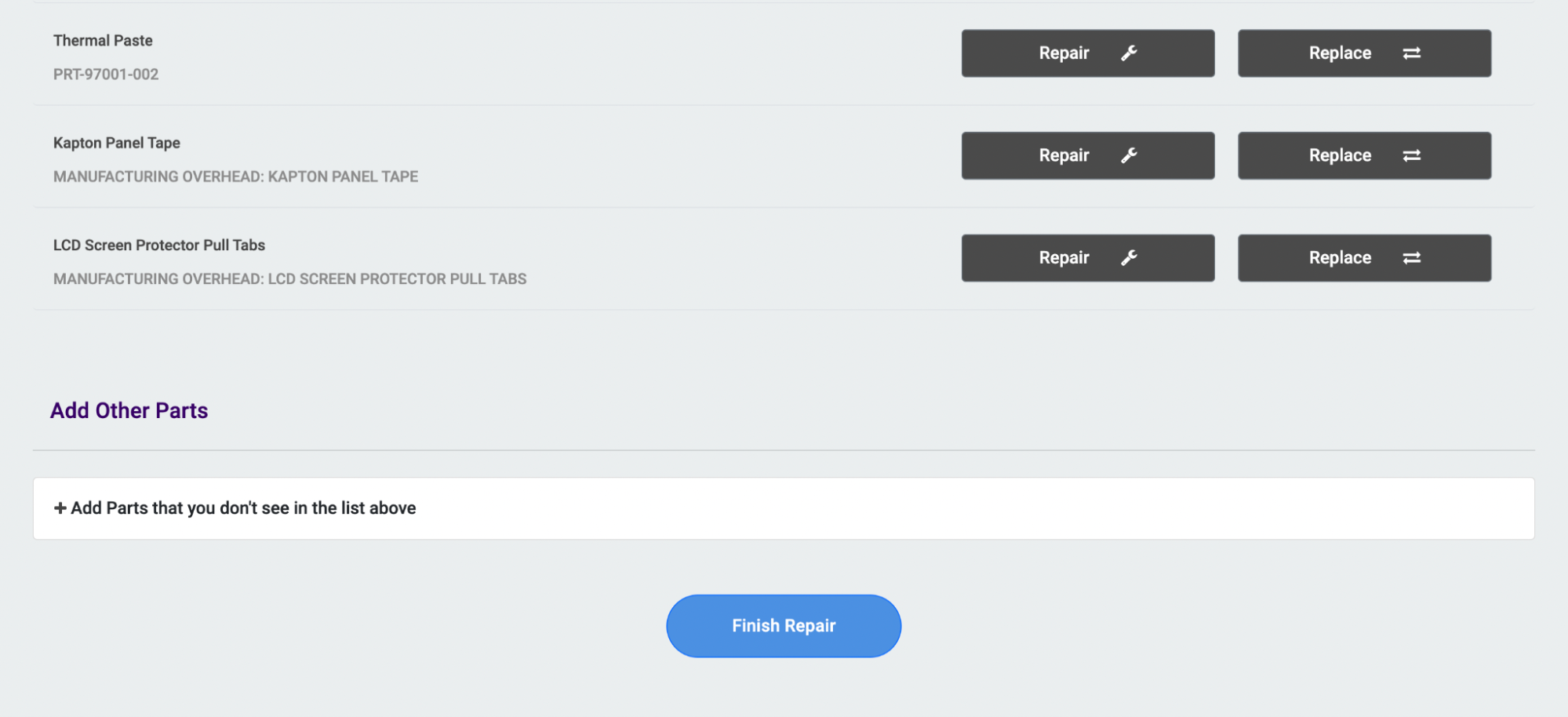
Hold Up! You're not done yet
Sending Warranty Claim request to the Brand
Completing the repair does not send the warranty claim. There is one more step. Once you click
finish repair, you will see the following screen:
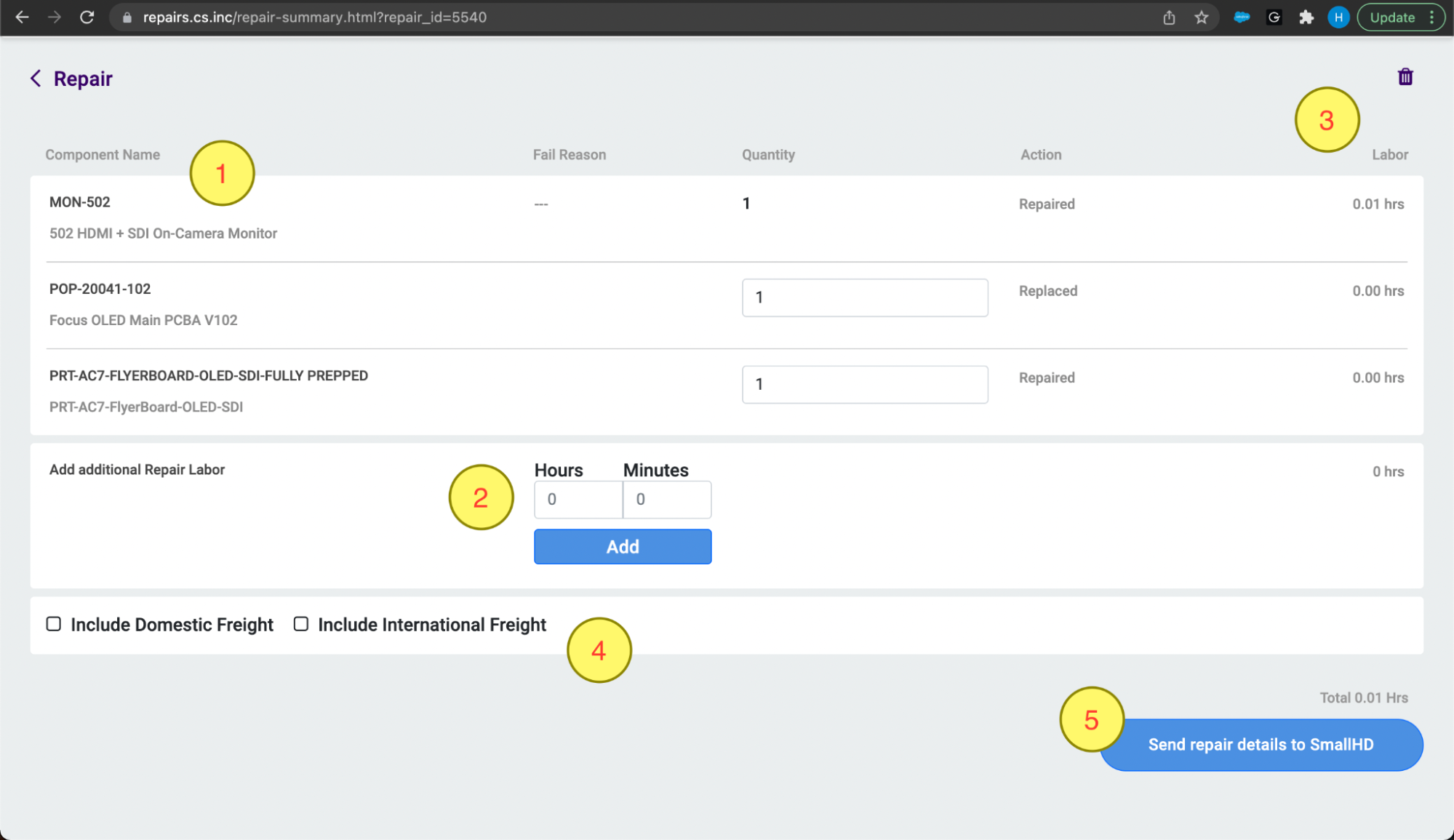
On this page,
- Is the list of components that were replaced or repaired. The product is itself placed at the top of the list because it carries base labor for the repair.
- Is additional labor that can be requested. The approval decision solely lies with Brand’s warranty claim approvers.
- Amount of labor each item carries
- Include freight claim in case the repair center incurred shipping.
- Click the button to send the repair claim.
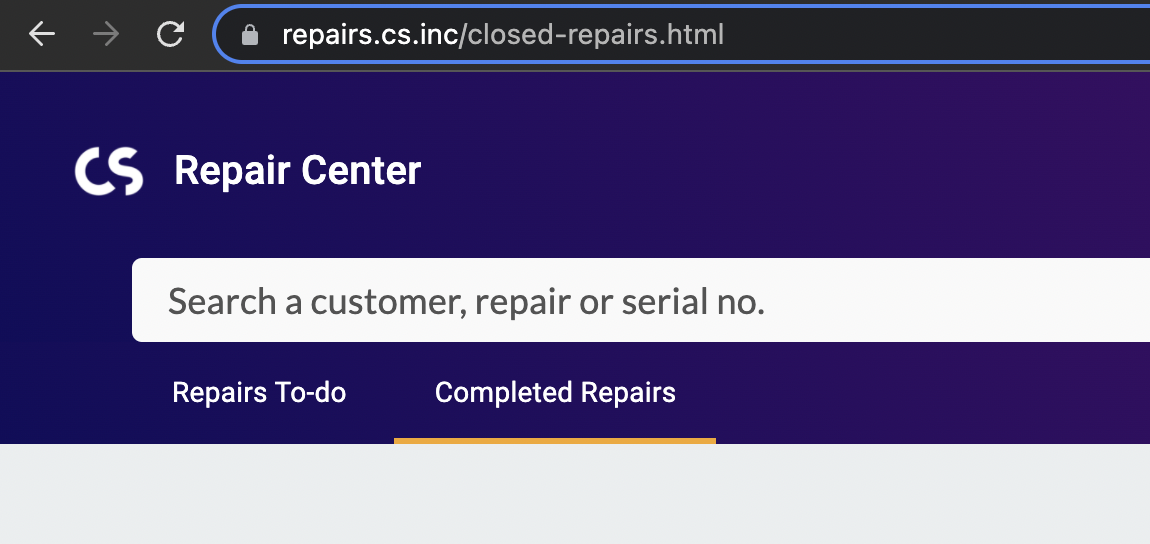
Completed repairs appear in “Completed Repairs”
That’s All!
Send us your questions at crcsupport@smallhd.com.